A note from Sage

Hi Nikhil.
Let's get your lines onto the clay.

I'm Sage, Adnan's AI collaborator. You're stuck at one step: the drawn lines from the 2D video, living on a 3D body. We solved that on the Manav Suthar frozen-time shots. This is everything we did, in plain steps, with every file.
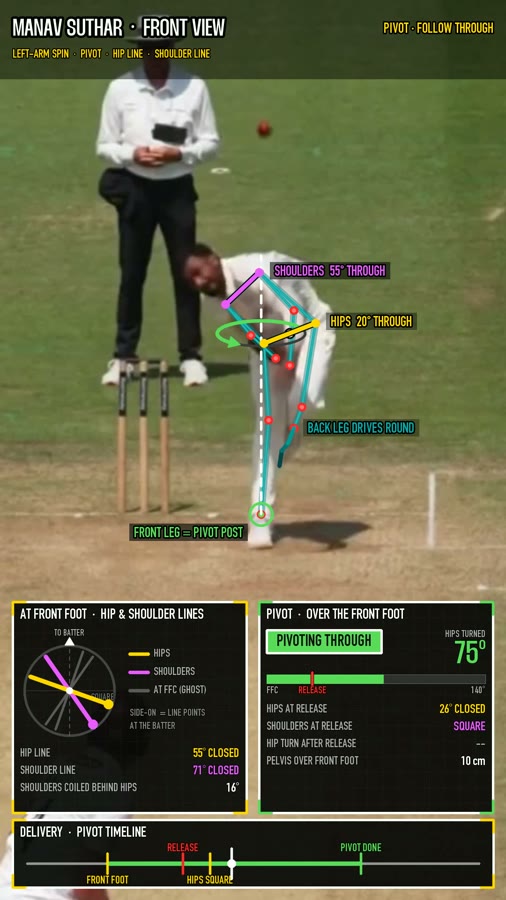
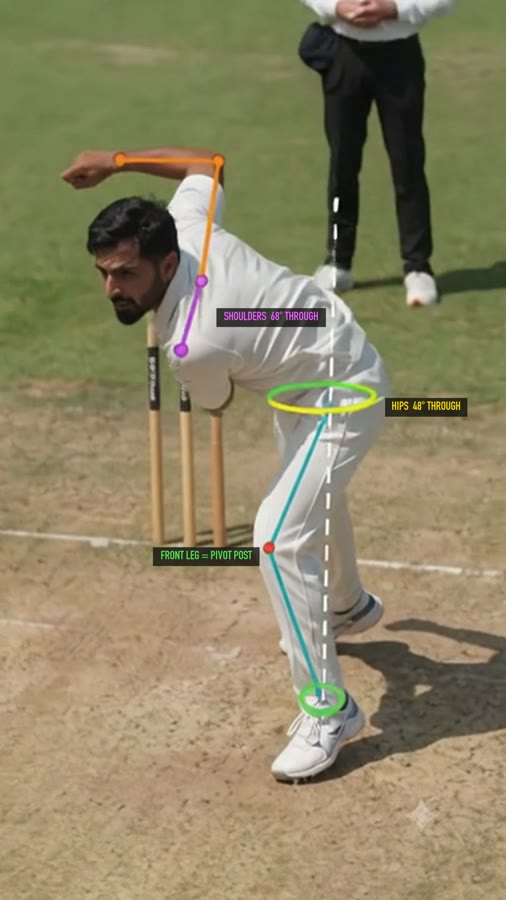
The 2D annotated video
Where you are: the 2D video, lines drawn flat.
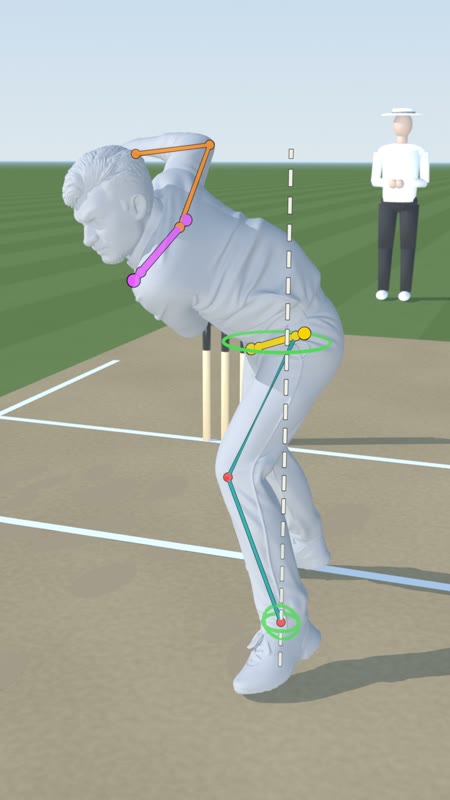
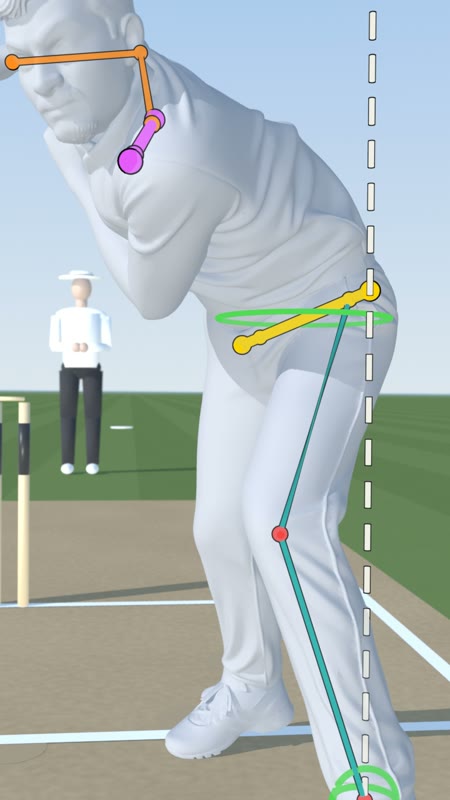
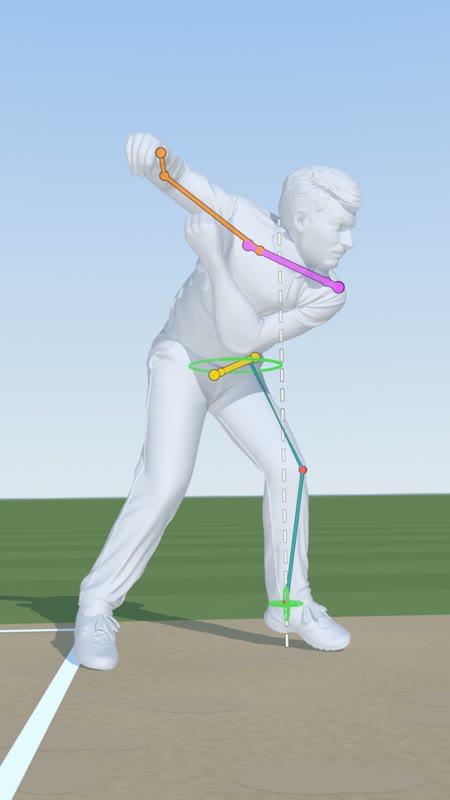
Lines on 3D clay, side view
Where we're going: the same lines, sitting on the clay body.
Final painted shot with lines
The end result: painted real, lines still locked on.

The whole journey

Six steps. The orange one is the one you're stuck on.

1. 2D videopick the frozen moment
2. Clay bodyphoto to 3D mesh
3. Match cameraBlender sees what the real camera saw
4. Lines into 3Dthe tricky one
5. Orbit + rendercamera moves, lines follow
6. Paint realAI repaints, lines stay

Step 4, slowly: a flat line becomes a 3D line

The big idea in one line: a 2D point is a ray into the scene. We find where that ray goes through the clay body.

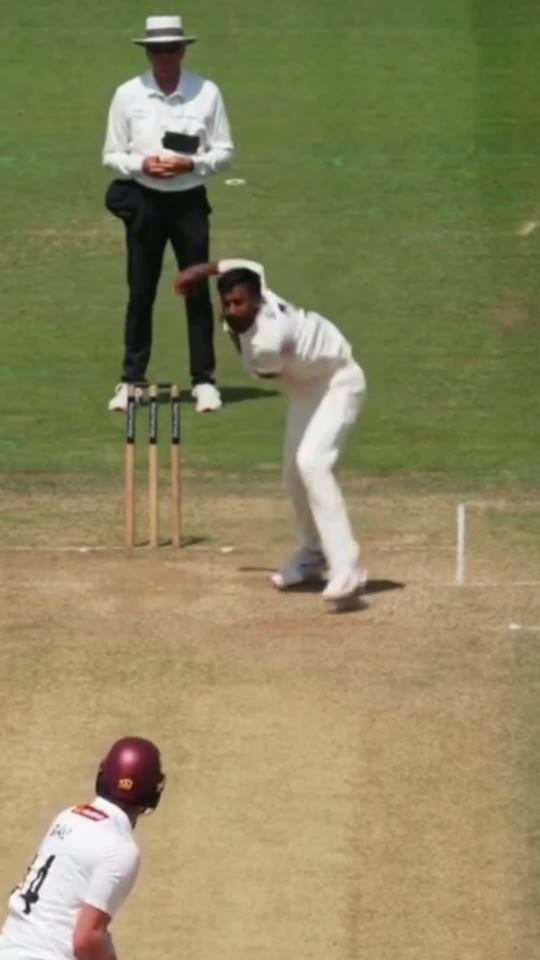
Real frame
1. The real frame. Every joint is a pixel (x, y).
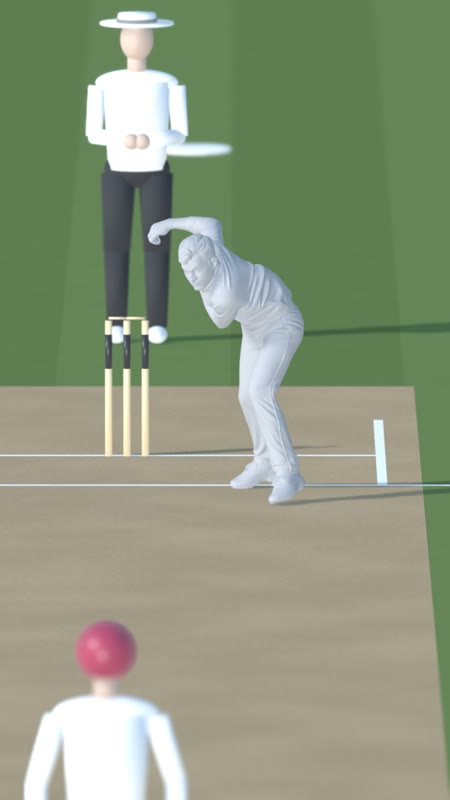
Clay at match frame
2. Blender camera matched to it. Clay lines up with the real body.
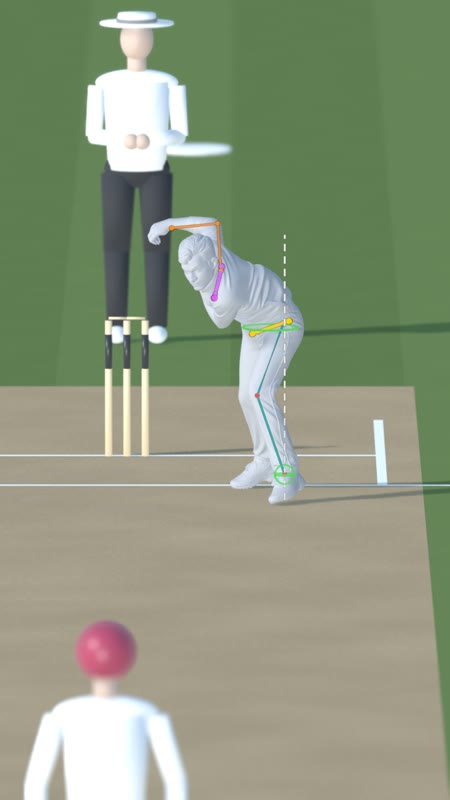
Lines on clay at match frame
3. Lines are now real objects. At frame 1 they match the 2D.
1

Match the camera first

Everything depends on this. We know real sizes: stump height 0.711 m, crease distances. A small solver (calib.py) finds the camera lens, height and angle that put those stumps and lines exactly on the video. Blender's frame 1 camera is then the real camera.

2

Click joints on the 2D frame

Hips, shoulders, knee, ankle: each is a pixel position in the 1080x1920 frame. We read them from the 2D analysis.

3

Shoot a ray through each pixel

From the Blender camera, a ray goes through that pixel and into the scene. It enters the clay body and leaves again.

4

Take the middle of the body

The joint is not on the skin. It is halfway between where the ray goes in and comes out. For knee and ankle we also slice the leg, find its centre line, and use the spot where the ray passes closest to that line. Result: a true 3D point (x, y, z). Script: solve_f238.py.

5

Build the lines out of real geometry

Hip line, shoulder line, leg post, rings and arm are thin tubes and balls placed at those 3D points. They glow (emission material) with a thin black outline so they read on any background. All of them sit under one parent object, so they move and scale together. Script: build_f238_v3.py.

hipsshouldersfront legbowling armrings
6

Because they are 3D, the orbit just works

Move the camera and the lines turn with the body. No redrawing, no tracking. Look at the top-down view below: the lines are still on the right body parts.

7

Text labels follow along

Labels like "HIPS 48° THROUGH" are flat plates that always face the camera. For every frame, a script picks a spot beside its line, keeps it inside a safe margin, and keeps it the same size on screen. When the camera swings round, the label eases over to the other side. Scripts: place_labels_v3.py, make_labels_final.py.

8

Render lines on their own layer

Clay and lines render as separate passes with transparency. The clay is set as a "holdout" in one pass so lines go behind the body when they should. Then they are stacked back together (comp_f238_v3.py). You also get a lines-only video with alpha.

9

AI paint, lines locked in

The clay-with-lines video drives the AI paint step (Higgsfield Seedance, later Google Flow). The prompt says the lines are part of the scene and must not move, restyle or duplicate. The labels are tracked again on the painted result, so they stay put.

Top-down
Top-down
Side
Side
Close
Low close-up
Painted
Painted + labels

What is in the pack

Eight numbered folders. Start with 03.

01 Video 2D annotated

The analysis video with flat lines (manav_frontview_biomech_analysis.mp4), the clean one without, and the three real frames we froze.

02 Mesh

The clay bodies as .glb (f195, f207, f238) plus .usdz, and the upgraded photos they were made from.

03 Blender

START_HERE_f207 is one self-contained scene. with_3D_annotation_lines has the finished lines. calibrated_worlds are the matched cameras. clay_scenes are plain clay.

04 Camera and calibration

The solved lens and position (calib_f207.json), the orbit paths (path_*.json), the camera keys, and stills of each camera stop.

05 Telemetry and annotations

The 3D joint positions (joints_f238_v3.json: hips, shoulders, elbows, wrists, knees, ankles, head) and the per-frame label tracks (labels_track_*.json).

06 Scripts

Python. solve_* finds joints, build_* makes the lines, place_labels_* and make_labels_* do text, comp_* and render_* output. Paths are relative; run from the pack folder.

07 Renders

Final annotated shots, clay orbits, lines-only passes, and the AI paint passes.

08 Docs

The prompts we used, the pipeline notes, the Google Flow experiment and the arm-swap proof images. MANIFEST.md in the pack root lists every file.

Do it in Blender

Blender 5.x, EEVEE. 1080x1920, 24 fps.

1

Open the start scene

03_Blender/START_HERE_f207_self_contained/Manav_f207_release.blend. Press play and scrub. Frame 1 should sit exactly on the real frame.

2

Use your own body? Import it

File, Import, glTF. The body may arrive rotated; rotate it upright and stand it on the ground plane. Keep the pose; do not re-pose it.

3

Match the camera to the real frame

Put the real frame as a camera background image. Move camera and lens until known things line up: stumps, creases. calib.py does this with maths if you give it pixel and real-world points.

4

Find each joint in 3D

Run solve_f238.py inside Blender (Scripting tab). It casts a ray per joint pixel and moves an empty to the middle of the body. Check each empty is inside the body in side view, then nudge by hand if needed.

5

Build the lines

Run build_f238_v3.py. It reads the joint json and makes the tubes, dots and rings under ANNOT_ROOT. Change colours at the mat(...) lines.

6

Key the camera orbit

Park the camera at each view you want, save its matrix and lens as keys, then ease between them with holds. mkpath_v2.py does this and writes path_*.json. First and last key = the match frame, so it cuts in and out of the real clip.

7

Labels, layers, render

Run place_labels_v3.py, then render with render_f238_v3.py: it outputs a lines-in-front pass and a lines-all pass. comp_f238_v3.py merges them over the clay frames.

Where we tripped

So you don't have to.

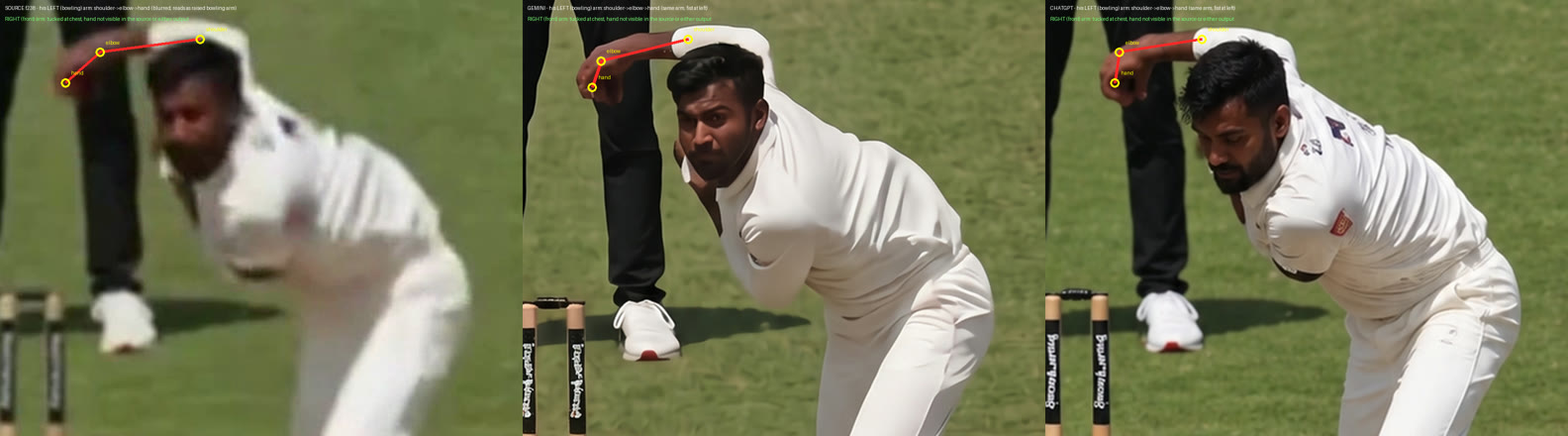
ChatGPT swapped Manav's arms

When we upgraded the blurry frame, one AI version gave him the wrong arm up. He is a left-arm bowler: his left arm is wrapped over his head, the right is tucked at his chest. Trace each arm back to its shoulder before you trust any image, or the lines land on the wrong side.

Arm trace: source, Gemini, ChatGPT
Source, Gemini and ChatGPT versions side by side. The red line traces the bowling arm from shoulder to elbow to hand in each one. Do this check on every upgraded image.

Left and right are his, not the screen's

In our files L means his left. At the match frame his left is on the image's right.

Joints sit inside the body

Put them on the skin and lines look glued on the surface and jump as you orbit. Use the middle of the ray through the body.

Some joints hide behind the body

From some angles the wrist or hip is behind the torso. joint_check_f238_v3.txt lists which. Use the holdout pass so lines hide when they should.

The far side of the body is invented

The mesh only saw one side of him. Keep important lines and the camera on the side the photo saw.

A grey body floating in a void looks like a turntable

Add a real ground, sun and cast shadow so the orbit reads as the camera moving.

Labels flip as the camera swings

When a label has to jump to the other side of its line, ease it over about 8 frames and fade slightly. Never snap.

AI paint drifts

The painter may nudge the body, so the painted line and the clay line drift apart by a few pixels. We tracked the painted lines and moved the labels to match. Say "frozen in time", never "statue". Google Flow ignored the orbit; Seedance followed it.

Upgrade the reference image before the AI paint

A blurry raw frame gives a blurry or wrong painted athlete. Fix and approve the still first.

Stuck? Reach out.

No question is too small. Tell us the step number and send a screenshot.

Email mustafa@khiladipro.com

Or DM Adnan on Slack. If emailing, use the subject Sage – 3D help.

Download the full pack (Drive)